-01.svg)
-02.svg)
-03.svg)
-04.svg)
-05.svg)
-06.svg)
-07.svg)
-08.svg)
-09.svg)
-10.svg)
-11.svg)
-12.svg)
-13.svg)
-14.svg)






blog
Google Search Console: The Most Powerful Free SEO Tool You’re Not Using Correctly
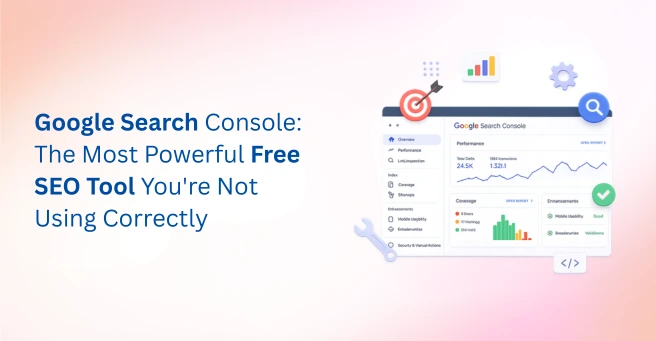
| Google Search Console (GSC) is a free tool by Google that helps website owners monitor search performance, uncover technical SEO issues, submit sitemaps, inspect URLs, and track Core Web Vitals from one centralized dashboard. To use Google Search Console effectively, verify your site property, then regularly audit the Performance Report for impressions and clicks data, the Indexing Report for page indexing issues, and the URL Inspection Tool to check how Googlebot crawls individual pages. GSC is the most direct way to identify and fix the technical and content issues preventing your site from ranking higher in Google Search. |
If you have Google Search Console installed but only check it once a month to glance at impressions and clicks, you’re leaving serious SEO gains on the table. Learning how to use Google Search Console properly beyond surface-level metrics is one of the highest-ROI moves any website owner or SEO professional can make.
GSC is not just a reporting dashboard. It’s a direct communication channel between your website and Google. It shows you exactly how Googlebot sees your pages, what’s blocking your content from ranking, and which keywords are sitting closest to page one. Most site owners never go beyond the basics. Many website owners unknowingly miss crawl errors that hurt their rankings, overlook indexing issues affecting their most valuable pages, and ignore Core Web Vitals warnings until organic traffic starts to decline.
This guide changes that. It covers every major feature, the most common mistakes SEOs make in GSC, and a practical monthly audit routine. By the end, you’ll know how to use GSC the way it was actually designed to be used.
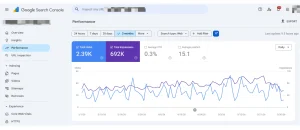
Image Source: Screenshot taken from Google Search Console.
What Is Google Search Console and Why Every SEO Professional Needs It
Google Search Console (GSC) is a free tool provided by Google that lets you monitor, maintain, and troubleshoot your website’s presence in Google Search results. It gives you direct visibility into search performance, page indexing status, crawl errors, core web vitals, and much more. According to the official Google documentation, Search Console helps website owners monitor, maintain, and troubleshoot their presence in Google Search.
A common point of confusion is the difference between GSC and Google Analytics. Google Analytics tracks user behaviour after someone arrives on your site – sessions, bounce rate, conversions. GSC tracks what happens before the click – how Google crawls and indexes your pages, which queries trigger your URLs, and whether your site has technical issues affecting search visibility.
As a google search console guide for beginners and experienced practitioners alike, here is what GSC monitors:
- Search performance:- clicks, impressions, CTR, and average ranking position
- Googlebot crawling status and frequency for individual URLs
- Page indexing:- which pages are in Google’s index and which are excluded
- Core web vitals scores across mobile and desktop
- Manual actions and security alerts issued by Google
- Sitemap submission and monitoring
- Internal and external links pointing to your site
GSC is useful for every type of web professional. SEO specialists use it to identify ranking opportunities. Developers use it to catch technical crawl issues. Content creators use it to find underperforming pages that need updating. Business owners use it to verify that their site is being seen by Google at all.
To get started, verify your website by adding a property in GSC and confirming ownership via HTML tag, DNS record, Google Analytics, or Google Tag Manager. Data begins accumulating within 24–48 hours.
How to Use Google Search Console: A Feature-by-Feature Breakdown
Understanding how to use Google Search Console means knowing what each report tells you and what action to take based on the data. Below is a practical breakdown of every major tool inside GSC.
URL Inspection Tool:- See Your Page Through Google’s Eyes
The URL inspection tool is one of the most underused features in GSC. It gives extraordinary insight into how Google processes any individual page on your site.
Enter any URL and the tool returns:
| Feature | Purpose |
|---|---|
| Index Status | Check whether page is indexed |
| Last Crawl Date | See when Google last visited |
| Canonical URL | Verify preferred URL version |
| Mobile Usability | Detect mobile issues |
| Structured Data | Find schema errors |
| Crawl Errors | Identify indexing blockers |
The Live URL test fetches the current live version of the page rather than the cached indexed version. This is critical when you have made recent changes and want to confirm Google can now access the updated content. The indexed version and the live version can differ significantly if Googlebot has not recrawled since your last update.
After publishing new content or making significant updates, use the URL inspection tool to request indexing. This does not guarantee immediate indexing, but it signals to Google that the page is ready to be crawled, which can accelerate the process compared to waiting for passive discovery.
The Performance Report:- Your Search Analytics Command Centre
The Performance Report is the first place most users look and for good reason. It contains the core search analytics data showing how your site is performing in Google Search.
The four primary metrics are:
- Total Clicks — how many times users clicked through to your site
- Total Impressions — how many times your URL appeared in search results
- Average CTR — clicks divided by impressions, expressed as a percentage
- Average Position — the mean ranking position across all queries
The real power of the performance report is in its filters. You can segment data by query, page, country, device, search type, and date. Filtering by query shows which search terms drive impressions and clicks. Filtering by page shows which URLs perform best or worst.
One of the highest-value tasks in any google search console tutorial is identifying low-CTR, high-impression keywords. These are pages that Google already shows for a query, but users are not clicking. The cause is almost always a weak title tag or meta description. Improving them can significantly increase traffic without any new content.
Extend the date range to compare periods and measure the impact of your SEO work over time. The default 3-month view hides seasonal patterns and long-term trends. Always analyse at least 6–12 months of data before drawing conclusions about your search performance.
Indexing Report:- Find and Fix Crawl Errors Before They Hurt Your Rankings
The indexing report is your primary diagnostic tool for understanding which pages are in Google’s index and which are being excluded. Pages are grouped into four categories: Error, Valid with Warning, Valid, and Excluded.
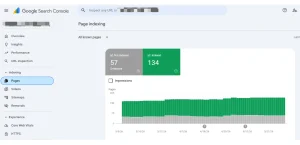
Image Source: Screenshot taken from Google Search Console.
The Excluded category is where most SEO problems hide. Common exclusion reasons include:
- Crawled – Currently Not Indexed: Google crawled the page but decided not to include it. This typically signals thin, duplicate, or low-quality content.
- Discovered – Currently Not Indexed: Google found the URL but has not crawled it yet, often due to crawl budget constraints or low page authority.
- Excluded by noindex Tag: A noindex directive is present. This may be intentional or an accidental tag left from development.
- Alternate Page with Proper Canonical Tag: The page is treated as a duplicate and another URL has been selected as canonical.
Regularly auditing the indexing report allows you to catch accidental deindexation early. A page that was previously indexed suddenly appearing under Excluded is a clear signal that something has changed and needs immediate investigation. Persistent crawl errors tell Google your site is unreliable, which compounds over time.
Core Web Vitals Report:- Page Experience Signals Google Uses to Rank
Core web vitals are real-world performance metrics that Google uses as part of its page experience ranking signals. The three current metrics are:
- LCP (Largest Contentful Paint) – how quickly the main content loads. A good score is under 2.5 seconds.
- CLS (Cumulative Layout Shift) – how much the layout shifts unexpectedly as it loads. A good score is under 0.1.
- INP (Interaction to Next Paint) – how quickly the page responds to user interactions. Replaced FID in March 2024. A good score is under 200 milliseconds.
The report segments pages into Good, Needs Improvement, and Poor. It separates mobile and desktop performance, which is important because scores often differ significantly between the two. Always prioritise the mobile report, as Google uses mobile-first indexing.
When pages are flagged as Poor or Needs Improvement, use Google PageSpeed Insights with that specific URL. GSC identifies the problem; PageSpeed Insights pinpoints the code, media, or script causing it.
Sitemaps:- How to Submit and Monitor Your Sitemap in GSC
An XML sitemap lists all the important URLs on your website, making it easier for Googlebot to discover and crawl your content. For large websites or sites with complex navigation, sitemap submission is one of the most important setup steps in GSC.
To submit a sitemap:
- Navigate to Indexing → Sitemaps in the GSC left menu
- Enter the URL of your sitemap, for example yourdomain.com/sitemap.xml
- Click Submit
- GSC will then display the sitemap status, number of submitted URLs, and number of indexed URLs
After sitemap submission, the dashboard shows how many URLs were submitted versus how many were actually indexed. A large gap between these two numbers points to duplicate content, blocked resources in robots.txt, or low-quality pages that Google is choosing not to index.
Ensure your sitemap and robots.txt file are aligned. Pages blocked in robots.txt should not appear in your sitemap. Conflicting signals between the two files confuse Googlebot and can result in unpredictable crawling behaviour.
Advanced Ways to Use Google Search Console for SEO Growth
Once comfortable with the core features, using google search console for seo at an advanced level unlocks strategic advantages that most competitors are missing.
| Opportunity | How to Find It | Benefit |
|---|---|---|
| Keyword Cannibalization | Query → Pages Report | Consolidate rankings |
| Page-Two Keywords | Filter positions 8–15 | Quick ranking gains |
| Content Refresh Opportunities | High impressions, declining clicks | Recover traffic |
| Manual Action Monitoring | Security & Manual Actions | Prevent penalties |
| Link Analysis | Links Report | Improve authority flow |
Find Keyword Cannibalisation
In the Performance Report, filter by a specific query and then switch the view to Pages. If multiple URLs are ranking for the same keyword, you have cannibalisation. Two competing pages split authority and confuse Google about which one to rank. The fix is consolidation, canonical tags, or differentiated content targeting.
Target Page-Two Rankings for Quick Wins
Filter the Performance Report to show queries where your average position is between 8 and 15. These pages sit on the boundary of page one. They already have authority and relevance. A content update, stronger internal linking, or title tag improvement can push them onto page one without building new links.
Use Impressions Data to Prioritise Content Refreshes
Pages with high impressions but declining clicks are losing search relevance. This usually means a competitor has improved, your content has become outdated, or Google has updated what it considers a quality result. Prioritise these pages for a content refresh before their rankings deteriorate further.
Monitor for Manual Actions and Security Issues
The Security and Manual Actions section will alert you if Google has issued a manual penalty or detected malware, hacked content, or spammy structured data. These issues can cause partial or complete removal from search results. Check this section after any major site change or after a sudden unexplained traffic drop.
Audit Your Link Profile
The Links report shows your top linked pages, top linking sites, and top anchor texts. Use it to identify pages accumulating external links, signals of topical authority and pages with strong internal link equity. Internal link data is particularly useful for improving how authority flows through your site structure.
Building a Monthly GSC Audit Routine That Actually Moves Rankings
Knowing how to use Google Search Console is one thing but building a repeatable system is what separates reactive SEO from strategic SEO. Here is a practical monthly routine based on real agency workflows.
| Week | Task | Goal |
|---|---|---|
| Week 1 | Review Performance Report | Find traffic drops and opportunities |
| Week 2 | Audit Indexing Report | Identify crawl and indexing issues |
| Week 3 | Check Core Web Vitals | Maintain page experience |
| Week 4 | Inspect New URLs | Accelerate indexing |
- Week 1 – Performance Report Review: Compare current month’s impressions and clicks against the previous month and the same period last year. Flag any queries or pages showing a significant drop in clicks or average position. These go into your optimisation queue.
- Week 2 – Indexing Report Audit: Check for new crawl errors, recently excluded pages, and any sudden drop in total indexed pages. If a previously indexed page now appears as Excluded, investigate the cause immediately.
- Week 3 – Core Web Vitals Check: Especially important after site updates, plugin changes, or new media uploads. A single uncompressed image or a new third-party script can push a previously Good page into Poor territory.
- Week 4 – URL Inspection for New Content: For every piece of content published in the past month, run a URL inspection and request indexing. Confirm that Googlebot crawling has occurred and that there are no structured data errors.
This routine takes roughly 60–90 minutes per month for most websites. The return is a site where technical problems are caught early, new content gets indexed faster, and ranking drops are identified before they become traffic losses.
Common Google Search Console Mistakes And How to Fix Them
| Mistake | Impact | Solution |
|---|---|---|
| Using GSC passively | Miss SEO opportunities | Review weekly |
| Forgetting sitemap updates | Slower indexing | Keep sitemap current |
| Ignoring mobile CWV | Poor mobile rankings | Monitor mobile reports |
| Ignoring crawl errors | Indexing issues | Fix errors quickly |
| Using only 3-month data | Incomplete analysis | Review 6–12 months |
Conclusion
Google Search Console is not a set-and-forget tool. It is a living record of how Google sees your website. Learning how to use Google Search Console systematically from the performance report to the indexing report, from sitemap submission to core web vitals – is one of the most practical skills any digital marketer or website owner can develop.
The difference between websites that grow consistently in organic search and those that plateau is rarely about publishing more content. It is about understanding and acting on the data that GSC provides every single day.
At Tangence, our SEO specialists audit your entire Search Console setup, resolving crawl errors, fixing indexing issues, improving core web vitals, and building content strategies backed by real search analytics. Whether you are starting fresh or scaling an existing site, Tangence’s SEO services are designed to turn GSC signals into measurable ranking improvements.