-01.svg)
-02.svg)
-03.svg)
-04.svg)
-05.svg)
-06.svg)
-07.svg)
-08.svg)
-09.svg)
-10.svg)
-11.svg)
-12.svg)
-13.svg)
-14.svg)






blog
How to Create a Robots.txt File Without Blocking Google by Mistake
| To create a robots.txt file, add a plain-text file named robots.txt to your site’s root directory with User-agent, Disallow, and Allow rules, plus a Sitemap directive. Block only low-value paths like admin folders or internal search pages, never CSS, JS, or the entire site with Disallow: /, and always validate the file in Google Search Console before it goes live. |
A single line in the wrong place can take an entire website out of Google Search overnight. It sounds dramatic, but it happens more often than most site owners realize, usually right after a redesign, a migration, or a rushed staging-to-production push. Someone forgets to remove one rule, and suddenly Googlebot is turned away at the door.
If you are here because you want to learn how to create robots.txt the right way, rather than copying a template and hoping for the best, you are already ahead of the problem. Robots.txt is a small, plain-text file, but it carries outsized responsibility. It sits at the root of your domain and tells search engine crawlers, including Googlebot, which parts of your site they are allowed to visit.
This guide walks through what the file actually does, how its syntax works, a safe step-by-step process for building one, and the mistakes that most commonly cause accidental blocking. A tested sample file, a validation checklist, and answers to the questions site owners ask most often are also included, so the file can be built with confidence rather than guesswork.
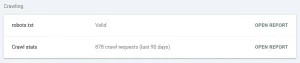
Image Source: Screenshot taken from Google Search Console.
What Is a Robots.txt File and Why Does It Matter for How to Create Robots.txt Correctly
A robots.txt file is a plain-text file, stored at your domain’s root, that follows the robots exclusion protocol. This protocol has guided crawler behavior since 1994 and was formally standardized in 2022, which is a good reminder that it’s not a passing trend. It’s a foundational piece of technical SEO that most active websites rely on today.
The file’s job is simple in theory: it tells search engine crawlers which paths they may access and which they should skip. What it does not do is control indexing directly. That distinction trips up a lot of people. Crawling is managed by robots.txt, while indexing is managed separately by the meta robots tag or the X-Robots-Tag header. Confusing the two is one of the most common causes of accidental blocking, and it’s covered in more depth further down.
| Directive | Purpose | Example |
| User-agent | Specifies which crawler the rule applies to | User-agent: Googlebot |
| Disallow | Blocks a path from being crawled | Disallow: /admin/ |
| Allow | Overrides a Disallow for a specific subpath | Allow: /admin/public/ |
| Sitemap | Points crawlers to your XML sitemap | Sitemap: https://example.com/sitemap.xml |
Data point: According to a 2026 technical SEO reference from Digital Applied, faceted navigation alone is responsible for roughly half of all Google crawl issues on ecommerce and content-heavy sites, which makes robots.txt one of the highest-leverage files for crawl budget management on larger websites.
Robots.txt Syntax Basics: How the File Is Structured
The file must be placed at the root of your domain, such as example.com/robots.txt, or it won’t be found by crawlers. Paths inside the file are case-sensitive, so Disallow: /Admin/ and Disallow: /admin/ are treated as two completely different rules. Wildcards are supported too. Any sequence of characters is matched by an asterisk (*), and a rule can be anchored to the end of a URL using a dollar sign ($).
Multiple user-agent blocks can exist in a single file, which lets different rules be set for Googlebot, for crawlers in general using a wildcard (*), and increasingly, for AI crawlers such as GPTBot or Google-Extended. Each block is read independently, and the most specific matching rule is applied by Google whenever Allow and Disallow conflict.
Tip: Test every rule inside Google Search Console’s robots.txt report before pushing it live. Syntax that looks correct on the page can still block far more than intended once a real crawler tries to parse it.
How to Create a Robots.txt File: Step-by-Step
Here’s exactly how to create robots.txt files that support crawlability instead of accidentally working against it. The process is short, but each step matters, and skipping one is usually where things go wrong.
Step 1: Decide What Actually Needs Blocking
Start with a short list. Focus on admin folders, internal search result pages, staging environments, and duplicate parameter URLs. If you’re unsure about a page or directory, leave it accessible. Over-blocking happens far more often than under-blocking and usually causes much greater SEO problems.
Step 2: Write the File Using Correct Syntax
Keep the structure simple, clean, and easy to read. A well-organized, well-commented robots.txt file is easier to maintain and helps future team members understand your rules without confusion.
Step 3: Upload the File to the Root Directory
Upload the file to yourdomain.com/robots.txt exactly. Search engines won’t recognize the file if you place it inside a subfolder.
Step 4: Add Your Sitemap Directive
Include a Sitemap directive to point search engines directly to your XML sitemap. This simple step helps crawlers discover new and updated pages more quickly across your website.
Step 5: Test Before Publishing
Before you publish the file, test every rule with the URL Inspection Tool and the robots.txt report in Google Search Console. These tools confirm that your rules work as intended on real URLs and help you catch mistakes before they affect your website.
Step 6: Monitor Crawl Behavior After Launch
After you publish the file, monitor the Crawl Stats report regularly. If Googlebot activity drops suddenly after a robots.txt update, investigate the issue immediately because it often indicates an unintended crawl restriction.
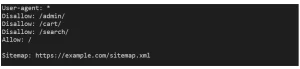
Here’s a sample robots.txt file that reflects safe, commonly used rules for a typical business website:
8 Common Robots.txt Mistakes That Block Google by Accident
Most accidental blocking doesn’t happen because people lack technical knowledge. Instead, it happens because of small oversights made under tight deadlines. During technical SEO audits, these eight mistakes appear repeatedly and often cause serious crawlability issues.
| Mistake | SEO Impact | Recommended Fix |
|---|---|---|
Using Disallow: / |
Blocks entire website | Remove immediately |
| Blocking CSS/JS | Rendering issues | Allow CSS & JS files |
| Leaving staging rules | Website disappears from Google | Remove before launch |
| Wrong case in URLs | Rules fail silently | Match exact URL casing |
| Missing Sitemap | Slower discovery | Add sitemap URL |
| Blocking robots.txt | Crawlers receive errors | Ensure file returns 200 OK |
| Ignoring AI crawlers | Reduced AI visibility | Configure GPTBot & Google-Extended |
1. Using Disallow: / Instead of a Specific Path
This is the most damaging mistake on this list. A single Disallow: / rule blocks every search engine crawler from accessing your entire website. In most cases, teams accidentally leave this rule in place after moving a staging site to production.
2. Blocking CSS and JavaScript Files Googlebot Needs
Google renders pages much like a modern browser. If you block CSS or JavaScript files, Google may interpret your pages as broken or incomplete, even though they appear perfectly normal to visitors.
3. Forgetting to Remove Staging Rules After Launch
Developers intentionally block staging environments from search engines. However, if they copy those same rules to the live website, they can unintentionally prevent Google from crawling part or all of the site. This remains one of the most common launch-related SEO mistakes.
4. Confusing Robots.txt with the Meta Robots Tag
Robots.txt controls crawling, while the meta robots tag controls indexing. Using the wrong method often creates unexpected results. For example, Google may still index a URL without a snippet if another website links to it, even though robots.txt blocks the page from crawling.
5. Ignoring Case Sensitivity in URL Paths
A rule such as Disallow: /Products/ won’t block /products/ because search engines treat those paths as different URLs. Since the rule looks correct at first glance, many teams overlook this issue during manual reviews.
6. Blocking the Robots.txt File Through Server Configuration
Server rules sometimes return an error instead of serving the robots.txt file. As a result, some crawlers may assume there are no crawl restrictions, while others may stop crawling the website altogether.
7. Omitting or Misconfiguring the Sitemap Directive
Although leaving out the Sitemap directive won’t break your SEO, it can slow page discovery. By adding a correct sitemap URL, you help search engines discover new and updated content more efficiently.
8. Ignoring AI Crawlers
AI crawlers have become an important part of modern SEO. You can create separate rules for crawlers such as GPTBot and Google-Extended to decide whether they can access your content. This approach gives you greater control over AI training, AI citations, and content visibility across AI-powered search experiences.
Robots.txt Best Practices for Crawl and Indexing Optimization
- Keep the file minimal, and only block paths that genuinely need to stay out of the crawl
- Pair your robots.txt rules with canonical tags and strong internal linking to manage duplicate content effectively.
- Use robots.txt to optimize crawl budget on large websites instead of hiding content from users or search engines.
- Review and update your robots.txt file after major migrations, platform changes, or website architecture updates.
- Keep your robots.txt file aligned with your XML sitemap so search engines receive consistent crawl signals across your website.
Tip: Treat robots.txt as a crawl-efficiency tool, not a security feature. Because anyone can access the file publicly, never rely on it to hide sensitive pages. Instead, use it to guide search engines toward your most valuable content and improve crawl efficiency.
How to Test and Validate Your Robots.txt File
Testing is an essential part of the process, not just a final step. At this stage, you confirm whether your robots.txt file supports your SEO goals or unintentionally blocks important pages. By validating the file before it goes live, you can identify issues early and prevent costly crawl or indexing problems.
| Tool | Best For | Cost |
| Google Search Console | Official robots.txt report and validation | Free |
| URL Inspection Tool | Per-URL crawl-allowed status | Free |
| Screaming Frog | Site-wide crawlability audit | Free / Paid |
Final Thoughts
Robots.txt may be a small file, but it plays a critical role in your website’s crawlability and page discovery. A single incorrect rule can undo months of SEO effort, while a well-structured file helps search engines crawl your website more efficiently and improves indexing.
By learning how to create robots.txt correctly from the start, you can prevent costly mistakes and build a stronger technical SEO foundation. Instead of treating it as a one-time setup, review and update your robots.txt file whenever you redesign your website, migrate to a new platform, or change your site structure.
If you are unsure whether your robots.txt file is blocking Googlebot or limiting your website’s visibility, Tangence Solutions can help. Our team combines technical SEO expertise with data-driven SEO services to identify crawlability issues, optimize website architecture, and improve indexing. From comprehensive technical SEO audits to long-term SEO strategies, we help businesses build websites that search engines can crawl efficiently and users can easily discover.
Frequently Asked Questions
1. How do I create a robots.txt file for my website?
Create a plain-text file named robots.txt and add the appropriate User-agent, Disallow, and Allow rules for the pages or folders you want to manage. Then, include your Sitemap directive and upload the file to your website’s root directory.
2. Where should I upload the robots.txt file?
Upload the file to your domain’s root directory, such as example.com/robots.txt. Search engines won’t detect the file if you place it inside a subfolder.
3. Can robots.txt block a page from ranking on Google?
No. Robots.txt controls crawling, not indexing. In some cases, Google may still index a blocked URL if other websites link to it. To prevent a page from appearing in search results, use the meta robots noindex tag.
4. What’s the difference between robots.txt and the meta robots tag?
Robots.txt tells search engine crawlers which pages they can or cannot crawl. In contrast, the meta robots tag tells search engines whether they should index a page after crawling it. Because they serve different purposes, use each one for the appropriate task.
5. How do I block AI crawlers without blocking Googlebot?
Create separate User-agent sections for AI crawlers such as GPTBot or Google-Extended, while leaving your Googlebot rules unchanged. Each crawler follows only the rules that match its user-agent or the wildcard (*) directive.
6. Does every website need a robots.txt file?
Yes. A robots.txt file helps you control crawl behavior, prioritize valuable pages, and prevent search engines from wasting crawl budget on low-value URLs. Without one, crawlers generally assume they can access your entire website.
7. How do I check whether my robots.txt file is blocking Google?
Open the robots.txt report in Google Search Console or inspect individual URLs with the URL Inspection Tool. These tools show whether Google can crawl a URL and identify the rule that blocks access, if applicable.