-01.svg)
-02.svg)
-03.svg)
-04.svg)
-05.svg)
-06.svg)
-07.svg)
-08.svg)
-09.svg)
-10.svg)
-11.svg)
-12.svg)
-13.svg)
-14.svg)






blog
How to Fix “Crawled – Currently Not Indexed” in Google Search Console
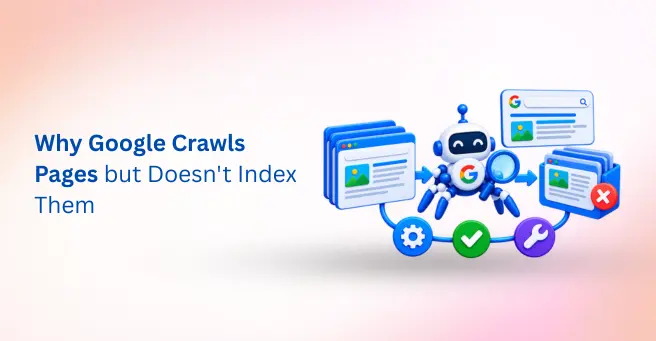
| Crawled currently not indexed means Googlebot fetched a page, but Google has chosen not to add it to its index yet. It is not an error or a penalty. The usual causes are thin or duplicate content, canonical conflicts, poor internal links, and rendering problems. Fix those first, then request indexing once. |
A team publishes dozens of new pages. A week later, Google Search Console shows hundreds of URLs under crawled currently not indexed. Clicking “Request indexing” again and again changes nothing, and nobody can say why.
Here is the reassuring part. This status is a quality and priority decision, not a crawl error. Googlebot reached the page, so nothing blocked it. Google simply decided the page was not worth storing yet, and in most cases you can change that decision. Successful indexing depends on more than publishing content, as technical SEO fundamentals help ensure that search engines can access, process, and understand important website pages.
This guide explains what the status means, eight common causes, and how to diagnose your own URLs.
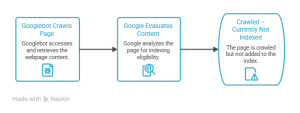
Image Source: Created using Napkin AI.
What Does Crawled Currently Not Indexed Mean in Google Search Console?
In plain terms, Googlebot crawled the URL, but Google has not added it to the index. Google’s own Search Console Help describes it the same way. The page was crawled but not indexed, it may or may not be indexed in the future, and there is no need to resubmit the URL.
This is not a penalty, a manual action, or a crawl error. You can find it in Google Search Console under Indexing, then Pages, then “Why pages aren’t indexed.” Keep in mind that the report shows only a sample of URLs, and Google states that the example list is limited to 1,000 items.
Not every URL in this list needs a fix. Google’s John Mueller has said, as cited by Motava, that it is normal for around 20 percent of a site’s content not to be indexed. Privacy policies, tag archives, and parameter URLs are common examples. Focus on pages that should earn traffic.
| Search Console Status | What It Means | Is Googlebot Reaching the Page? |
| Crawled – currently not indexed | Fetched, but Google chose not to index it (yet) | Yes |
| Discovered – currently not indexed | Known URL that has not been crawled yet | No |
| Excluded by “noindex” tag | The page tells Google not to index it | Yes |
| Blocked by robots.txt | Googlebot is not allowed to crawl the URL | No |
| Duplicate without user-selected canonical | Google picked its own canonical version | Yes |
Tip: Export the example URLs and group them by pattern, such as folder, template, or parameter, before you touch anything. The pattern usually points to the cause faster than any single URL.
Why Google Crawls Pages but Doesn’t Index Them: 8 Common Causes
These eight causes cover most cases. Each one includes a quick way to confirm it.
1. Thin or Low-Value Content
Thin pages add little that a searcher cannot already find. Short, generic, or paraphrased pages often end up in this status. To confirm it, compare the page with similar pages that are indexed. Then ask whether it offers original data, first-hand experience, or a clearer answer than the top results.
Data point: Onely reports that Marie Haynes reviewed about 40 sites and found that Google began deindexing pages in late May 2025, mostly old posts, thin pages, and pages that paraphrase information published elsewhere.
2. Duplicate or Near-Duplicate Content
When several pages say almost the same thing, Google usually indexes one and skips the rest. Service pages that differ only by city name are a classic example. To confirm it, search for a distinctive sentence from the page and see which URL Google returns.
3. Canonical Tag Conflicts
A canonical tag tells Google which version of a page to index. Problems start when the declared canonical points to a different URL, or when Google overrides it. To confirm it, open the URL Inspection Tool and compare the user-declared canonical with the Google-selected canonical.
4. Poor Internal Linking and Orphan Pages
Pages with few or no internal links look unimportant to Google. Orphan pages often appear in the XML sitemap and nowhere else. To confirm it, count inlinks in a site crawl, and look for pages buried several clicks from the homepage.
5. Rendering and JavaScript Problems
If the main content loads only after JavaScript runs, Googlebot rendering may see a nearly empty page. To confirm it, run the URL Inspection live test and view the crawled page. If the key text is missing there, you have found the problem.
6. Soft 404s and Empty Template Pages
Some pages return a 200 status but show little real content, such as empty category pages or search results with no items. Google may treat them as soft 404s. To confirm it, review what the page actually displays to a visitor.
7. Low Site-Level Quality or Trust Signals
New sites, and sites with large amounts of low-value content, often see slower indexing overall. Google weighs how useful a site is as a whole. To confirm it, run a site-wide content audit and check whether flagged pages outnumber indexed ones.
8. Low-Value URL Patterns Using Up Crawl Budget
Faceted navigation, tracking parameters, and endless archives create many URLs that add little. Google may crawl them but see no reason to index them. To confirm it, group flagged URLs by pattern. Large sites feel this problem most.
| Cause | How to Confirm It | Typical Fix | Effort |
| Thin content | Compare with indexed pages | Add depth and original insight | Medium to High |
| Duplicates | Search a distinctive sentence | Consolidate or redirect | Medium |
| Canonical conflicts | URL Inspection: user vs Google canonical | Align canonical tags | Low |
| Poor internal links | Inlink count in a crawl | Add contextual links | Low to Medium |
| Rendering issues | Live test and crawled page view | Server-side render key content | High |
| Soft 404s | Review the visible page content | Fill, merge, or remove | Medium |
| Low site quality | Site-wide content audit | Improve quality and E-E-A-T | High |
| Low-value URL patterns | Group URLs by pattern | Noindex, canonicalize, prune | Medium |
How to Diagnose Crawled but Not Indexed URLs
A short, repeatable process saves hours of guesswork. Follow these steps in order:
- Open the Pages report and export the example URLs
- Group the URLs by template or pattern
- Run the URL Inspection Tool on a few URLs from each group
- Compare the user-declared canonical with the Google-selected canonical
- Use the live test and view the crawled page to see what Googlebot renders
- Compare each group with similar pages that are indexed
- Check internal links and the XML sitemap for each group
When you view the crawled page, check three things: the rendered HTML, the screenshot, and any resources that failed to load. A page that looks complete in your browser can still look empty to Googlebot if scripts or styles are blocked.
Because the sample is capped, patterns matter more than totals. If most flagged URLs share one template, you are likely looking at a single root cause.
Tip: If most flagged URLs share one template, fix the template once instead of fixing pages one by one.
How to Fix Crawled Currently Not Indexed Pages: A Prioritized Plan
Not every fix carries the same weight. This order puts the highest-impact work first, so your effort goes where it counts.
- Decide which URLs deserve indexing. Prune, redirect, or noindex the rest, so Google can focus on pages that matter.
- Improve content depth and E-E-A-T signals. Add original insight, named authors, sources, and evidence that other pages lack.
- Consolidate duplicates. Merge near-identical pages and use a 301 redirect or a canonical tag to point to the best version.
- Fix canonical tags. Make sure the declared canonical and the Google-selected canonical match.
- Strengthen internal linking. Link to flagged pages from indexed, high-traffic pages, and rescue orphan pages.
- Clean the XML sitemap. List only canonical, indexable URLs that return a 200 status.
- Fix rendering problems. Make sure the key content appears in the rendered HTML, not only after scripts run.
- Request indexing once after the fix. Then monitor the Pages report instead of resubmitting.
| Fix | Best for These Causes | When to Expect Change |
| Content improvement | Thin content, low site quality | Weeks to months |
| Consolidation | Duplicates, near-duplicates | Weeks |
| Canonical alignment | Canonical conflicts | Days to weeks |
| Internal linking | Orphans, deep pages | Weeks |
| Rendering fix | JavaScript problems | Days to weeks |
Tip: Request indexing only after a real fix. Repeated requests on an unchanged page do not change Google’s decision.
How Long Does It Take for Crawled Pages to Get Indexed?
There is no fixed timeline. Recrawl frequency, site quality, and the size of your change all play a part. After a fix, you can click Validate Fix in the report. Google notes that validation can take several days or even longer.
Indexing is never guaranteed, either. Some pages will stay out of the index, and for low-value URLs that is the right outcome. Time also works against neglected pages.
Data point: Indexing Insight’s study of 1.4 million pages across 18 websites found that after about 60 days without a recrawl, a page can slip from a crawled status to a discovered status, which shows how quickly a lack of crawl attention compounds.
Common Mistakes When Fixing Indexing Problems
- Clicking “Request indexing” repeatedly without changing the page
- Publishing more thin pages to balance out the problem
- Treating every flagged URL as an error that must be fixed
- Blocking URLs in robots.txt, which stops Google from seeing the canonical or noindex tag
- Deleting pages without setting up redirects
- Ignoring the shared template behind a whole group of URLs
When It Is Fine to Leave a Page Unindexed
Some pages should stay out of the index, and that is a healthy sign, not a failure. Forcing them in would dilute the site instead of helping it. Common examples include:
- Thank-you and confirmation pages
- Internal search result pages
- Tag archives and deep pagination
- Filtered or sorted category URLs
- Outdated promotional pages with no remaining value
For these, the right move is often to keep a clean canonical, add a noindex tag where appropriate, and spend your energy on pages that can earn traffic.
Final Thoughts
The crawled currently not indexed status is a signal about quality and priority, not a technical error to click away. Google has seen your page, and it has not yet seen enough reason to keep it. That is a useful message, because it tells you where to focus.
The best fix combines better content, clear canonicals, and stronger internal links. In addition, pruning pages that do not deserve to rank helps Google spend its attention on the ones that do.
If sorting through hundreds of flagged URLs feels like a lot, Tangence Solutions can help. Tangence is a full-service digital marketing and SEO services agency with more than two decades of technical SEO experience. Its team audits Google indexing problems, content quality, canonical tags, and internal linking, then sets out a clear plan for the pages that matter most. To see where your own site stands, talk to Tangence’s SEO team about an indexing audit.
Frequently Asked Questions
1. What does crawled currently not indexed mean in Google Search Console?
It means Googlebot fetched the page, but Google has not added it to the index. It is not an error or a penalty. Google says the page may or may not be indexed later, and you do not need to resubmit it.
2. Is the crawled but not indexed status a penalty?
No. A penalty would appear as a manual action in Search Console. This status reflects an indexing decision based on quality and priority. It often points to thin, duplicate, or poorly linked pages, so it is worth investigating, but it is not a punishment.
3. How long does it take Google to index a crawled page?
There is no fixed timeline. Some pages are indexed within days, while others wait weeks or never appear. Site quality, internal links, and the size of your improvement all matter. Validation in Search Console can take several days or longer.
4. Does clicking Request indexing help?
Rarely on its own. Google says there is no need to resubmit these URLs. Request indexing once after you genuinely improve the page, such as adding depth or fixing a canonical. Repeated requests on an unchanged page do not change Google’s decision.
5. What is the difference between crawled and discovered currently not indexed?
Discovered means Google knows the URL but has not crawled it yet. Crawled means Googlebot fetched the page and still did not index it. When a page moves from discovered to crawled, the problem shifts from crawl timing to indexing evaluation.
6. Can a noindex tag or robots.txt block cause this status?
Not usually. A noindex tag appears as “Excluded by ‘noindex’ tag,” and a robots.txt block appears as “Blocked by robots.txt.” Check both settings anyway, but expect different labels. Google must crawl a page before it can read a noindex tag.
7. How do I fix crawled currently not indexed pages on a large website?
Group URLs by template or pattern first. Prune or noindex low-value patterns, then improve the templates that matter, such as product or location pages. Strengthen internal links to priority pages, clean the sitemap, and review the Pages report monthly.