-01.svg)
-02.svg)
-03.svg)
-04.svg)
-05.svg)
-06.svg)
-07.svg)
-08.svg)
-09.svg)
-10.svg)
-11.svg)
-12.svg)
-13.svg)
-14.svg)






blog
How to Find 404 Errors and Fix Them Without Losing SEO Value

| To fix a 404 error, first find it using Google Search Console, a site-wide crawl tool like Screaming Frog, or server logs, then decide whether to 301 redirect it to the closest relevant live page, restore the original content, or leave it as a genuine 404 if the page has no traffic or backlinks left. Broken internal links pointing to the old URL should also be updated directly rather than left to rely on the redirect alone. |
A site owner clicks through from an old backlink, or from a Google result that used to rank reliably, and lands on a blank page not found screen. It’s their own website. The page used to perform well, and now it’s simply gone, with nothing explaining what happened to it or where it went.
This is a more common scenario than most site owners expect, and learning how to fix 404 error issues properly starts with understanding that 404s aren’t automatically harmful. Google has said as much directly. What actually causes damage is different: unmanaged broken links, wasted crawl budget, lost link equity, and a frustrating experience for real visitors who hit a dead end.
This guide covers what a 404 error actually is, how to find them across an entire site, and the redirect strategy that separates a properly handled 404 from one that quietly erodes rankings. A comparison table, a fix checklist, and seven frequently asked questions are included as well.
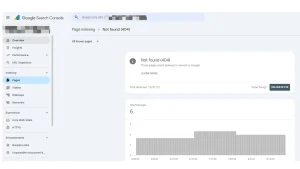
Image Source: Screenshot taken from Google Search Console.
What Is a 404 Error and How Does It Affect SEO?
A 404 error is an HTTP status code a server returns when it can’t find the page a browser or crawler requested. This is different from a soft 404, where a page actually returns a 200 status code, meaning the server considers it to have loaded successfully, while the content itself looks empty, broken, or error-like to Google.
A common misconception deserves a direct correction here. A handful of ordinary 404 errors is not inherently harmful to SEO, and Google’s own guidance confirms this. Pages get removed and deleted on almost every active site, and that’s treated as a normal part of a website’s lifecycle rather than a red flag on its own.
The real damage comes from a different source: broken internal links, lost link equity on pages that still carry external backlinks, and a poor experience for actual visitors landing on a dead page. High-traffic pages returning 404s unexpectedly, large volumes of broken internal links, or important pages disappearing after a migration without redirects are the situations that genuinely warrant attention.
| Error Type | HTTP Status Code | What It Means |
| Standard 404 | 404 | Server confirms the page doesn’t exist |
| Soft 404 | 200, but treated as 404 by Google | Page loads but looks empty or error-like to Google |
| 410 Gone | 410 | Page is intentionally, permanently removed |
| Broken redirect target | 404, after following a broken redirect | Redirect points to a URL that no longer exists |
Google treats a page that returns a 200 status while appearing to be an error page as a soft 404, which can be identified through the Page Indexing report in Search Console
How to Find 404 Errors on Your Website
Finding broken URLs is the first half of learning how to fix 404 error problems properly, since a fix can’t be applied to a broken link nobody knows exists yet. Google Search Console’s Page Indexing report and Crawl Stats report are the free, first-party starting point for learning how to find 404 errors before they compound into a larger problem. The URL Inspection Tool goes a step further, checking the live status of a specific suspected broken URL directly.
Site-wide crawls using tools like Screaming Frog or Sitebulb catch broken internal links and broken external links at scale, which manual spot-checking simply can’t match on anything beyond a small site. Server logs and analytics data are also worth checking for 404 hits on pages that are still receiving traffic or backlinks, since those represent the highest-priority fixes.
Tip: Cross-reference your 404 list against your backlink profile. A 404 error on a page that still has external links pointing to it is a much higher priority fix than one nobody links to anymore.
How to Fix 404 Error Issues: Choosing the Right Redirect Strategy
Here’s how to fix 404 error problems once they’ve been found, starting with a simple decision: redirect the URL, restore the original content, or leave it as a genuine 404. Each situation calls for a different response, and treating every broken URL the same way tends to create new problems instead of solving the original one.
A 301 redirect suits permanently moved or merged content, and it should point to the closest relevant live equivalent, not just the homepage by default. A 302 redirect should be reserved for genuinely temporary situations only, since using it for a permanent fix confuses search engines about long-term intent and can delay how quickly ranking signals transfer to the new URL.
Redirect chains and redirect loops should be avoided wherever possible, and keeping redirects to a single hop protects both crawl budget and link equity. Not every 404 needs a redirect at all. Genuinely obsolete content with no remaining traffic, backlinks, or relevant replacement can be left as a clean 404, or marked with a 410 status to signal permanent removal explicitly. Creating a URL map before launch also follows Google’s recommended approach for site moves and URL changes, which calls for mapping current URLs to their corresponding new URLs before implementing redirects.
| Situation | Recommended Fix |
| Page permanently moved or renamed | 301 redirect to the new URL |
| Page merged into another page | 301 redirect to the closest relevant match |
| Temporary outage or maintenance | 302 redirect |
| Content genuinely retired, no value remaining | Leave as a clean 404 or use 410 |
Fixing Broken Internal Links Behind the Scenes
Redirecting a URL isn’t enough on its own. Broken internal links still point to the old URL and should be updated directly, rather than left to rely on a redirect indefinitely, since every extra hop adds friction for both users and crawlers alike.
Orphan pages present a specific risk during this kind of cleanup. Removing a broken link without first checking whether it was the only path to a related page can accidentally create a brand-new discovery problem, even while solving the original broken link issue. A site-wide crawl export, paired with a careful find-and-replace approach inside the CMS, is generally the fastest way to batch-update broken internal links without introducing this kind of side effect. Broken internal links can also contribute to deeper site-structure problems, so reviewing click depth can help identify pages that are difficult for users and crawlers to reach.
Tip: Before removing any broken internal link, check whether the destination page has other internal links pointing to it. If it doesn’t, fixing the broken link could turn a minor issue into an orphan page problem instead.
Handling 404 Errors During Site Migrations and Redesigns
Site migrations and redesigns are common times for 404 errors to spike. They are also when a proper redirect strategy matters most. Before starting a migration, create a complete URL inventory. Include every indexed page, every page receiving organic traffic, and every URL with known backlinks.
Create a redirect map before the migration begins. Match every old URL with its new destination. Avoid building the map after the migration. Missing redirects can cause a sharp traffic drop after a redesign. Search engines may encounter many 404 errors without a clear signal about where the old content has moved.
Monitor the site closely after launch. Check Google Search Console daily for the first one to two weeks. This helps you identify missing redirects quickly. Fixing these issues early can prevent ranking losses and larger technical SEO problems.
Preventing Future 404 Errors
- Set up 404 monitoring through Google Search Console and periodic crawls, rather than waiting for a ranking drop to notice
- Build a redirect map before any URL structure change, content migration, or site redesign
- Avoid deleting or unpublishing pages without checking for existing internal and external links first
- Maintain a clean, updated XML sitemap so it never includes broken URLs
Tip: Treat every content deletion or URL change as a two-step process. Remove or move the content, then immediately verify nothing else on the site still links to the old URL.
Final Thoughts
404 errors are a normal part of any website’s lifecycle. However, unmanaged 404s can gradually hurt crawlability, link equity, and user experience. This is especially important on larger websites, where broken links can accumulate for months before anyone notices.
The goal is not to eliminate every 404 error. Instead, focus on the ones that matter most. These include high-traffic pages, URLs with valuable backlinks, and broken internal links. Find and fix these issues quickly to maintain your site’s technical SEO health. Consistent 404 monitoring may not be exciting, but it can prevent larger SEO problems over time.
If auditing broken links and building a proper redirect strategy feels like more than your team can manage manually, Tangence can help. Our SEO services team audits broken links, builds redirect strategies, and helps protect link equity and crawlability across websites. If you’re unsure how many broken links could be costing you traffic, we can conduct a complete broken link and redirect audit. We’ll identify the issues that need attention and show you where to start.
Frequently Asked Questions
1. How do I fix 404 error issues and find all the broken pages on my website?
Start with Google Search Console’s Page Indexing and Crawl Stats reports. Then, run a site-wide crawl using a tool such as Screaming Frog. Server logs and backlink data can help you identify which broken URLs need immediate attention.
2. Do 404 errors hurt my website’s SEO rankings?
Ordinary 404 errors on genuinely removed pages do not directly hurt rankings. The bigger risks are broken internal links, lost link equity from pages with backlinks, and a poor user experience.
3. Should every 404 error be redirected?
No. You do not need to redirect every 404 error. A genuinely obsolete page with no traffic, backlinks, or relevant replacement can remain a clean 404. Redirect pages that still have SEO value or a clear, relevant replacement.
4. What’s the difference between a 404 error and a soft 404?
A standard 404 returns an HTTP 404 status code because the requested page does not exist. A soft 404 returns a 200 status code even though the page appears empty, missing, or error-like to Google.
5. Should I use a 301 or 302 redirect to fix a 404 error?
Use a 301 redirect for permanent changes, such as moved or merged content. Use a 302 redirect only for genuinely temporary situations. Using a 302 for a permanent change can delay the transfer of ranking signals.
6. Can too many redirects slow down my website or hurt crawl budget?
Yes. Redirect chains can waste crawl budget and add unnecessary load time. Keep redirects to a single hop whenever possible. This improves crawl efficiency and provides a better user experience.
7. How often should I check my website for broken links and 404 errors?
A quarterly site-wide crawl is a reasonable baseline for most websites. Run checks more frequently after a migration, redesign, or major content cleanup. These changes can cause broken links and 404 errors to increase unexpectedly.